Registering your business in SAM.gov is the required first step before you can receive a federal contract award or grant. This step-by-step guide walks through the complete SAM.gov registration process — from creating your Login.gov account through entity validation, UEI confirmation, Reps & Certs, and banking setup — so you know exactly what to prepare and where most registrations run into problems.
For the full SAM.gov reference guide covering UEI, CAGE code, renewal, and troubleshooting, see the SAM.gov registration guide for small businesses. New to federal contracting entirely? Start with SAM.gov registration guide.
On this page Jump to section
How to Register in SAM.gov: The 9-Step Process
To register in SAM.gov, you create a Login.gov account, start an entity registration, enter your legal business name and physical address, complete entity validation, confirm your UEI, add NAICS codes and Reps & Certs, enter your banking information, and submit for approval. The process is free and typically takes anywhere from a few days to several weeks depending on how cleanly your records pass validation.
- Create a Login.gov account (business email + MFA)
- Sign in to SAM.gov and start entity registration
- Enter your legal business name and physical address
- Complete entity validation
- Confirm your UEI number
- Add NAICS codes and business classification details
- Complete Representations and Certifications (Reps & Certs)
- Enter EFT / banking information
- Review, submit, and track your registration status
Before You Start: What to Prepare
The businesses that complete SAM registration fastest are the ones that gathered and verified everything before opening SAM.gov — not mid-workflow. SAM.gov is detail-sensitive, and a single inconsistency between what you enter and what appears in official records can trigger manual review and add days to your timeline.
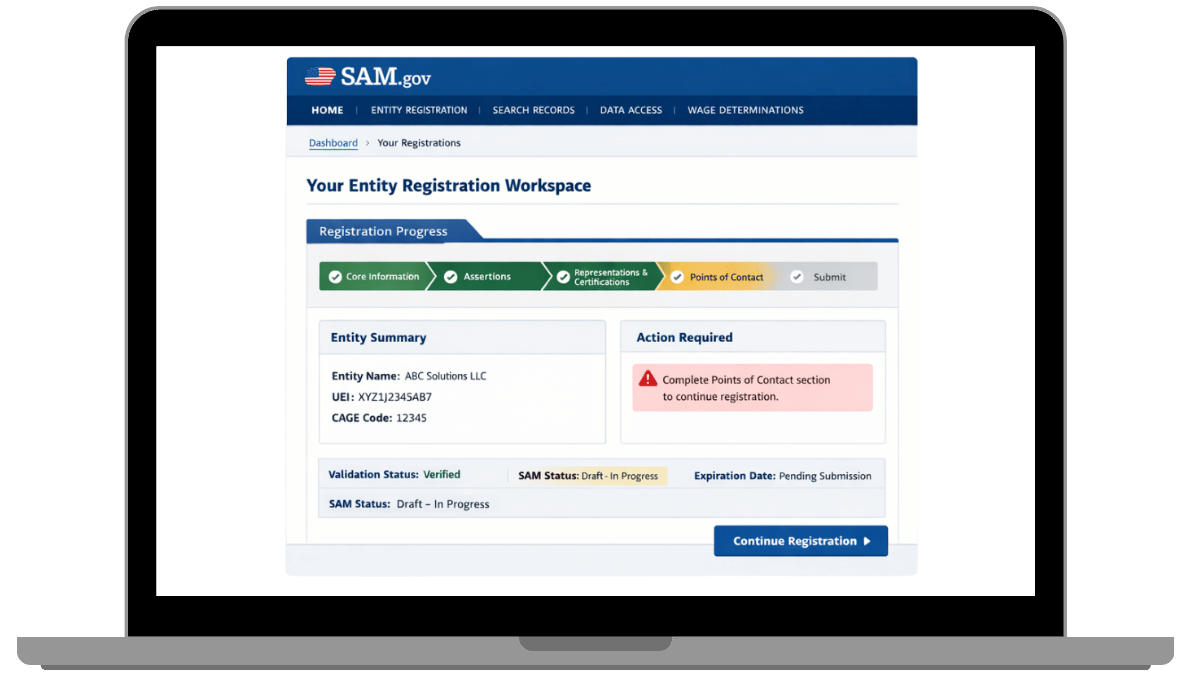
SAM Registration Pre-Start Checklist
Verify each item against your official business documents before you open SAM.gov. The IRS EIN letter is your most important reference — have it in front of you.
Step 1: Create Your Login.gov Account
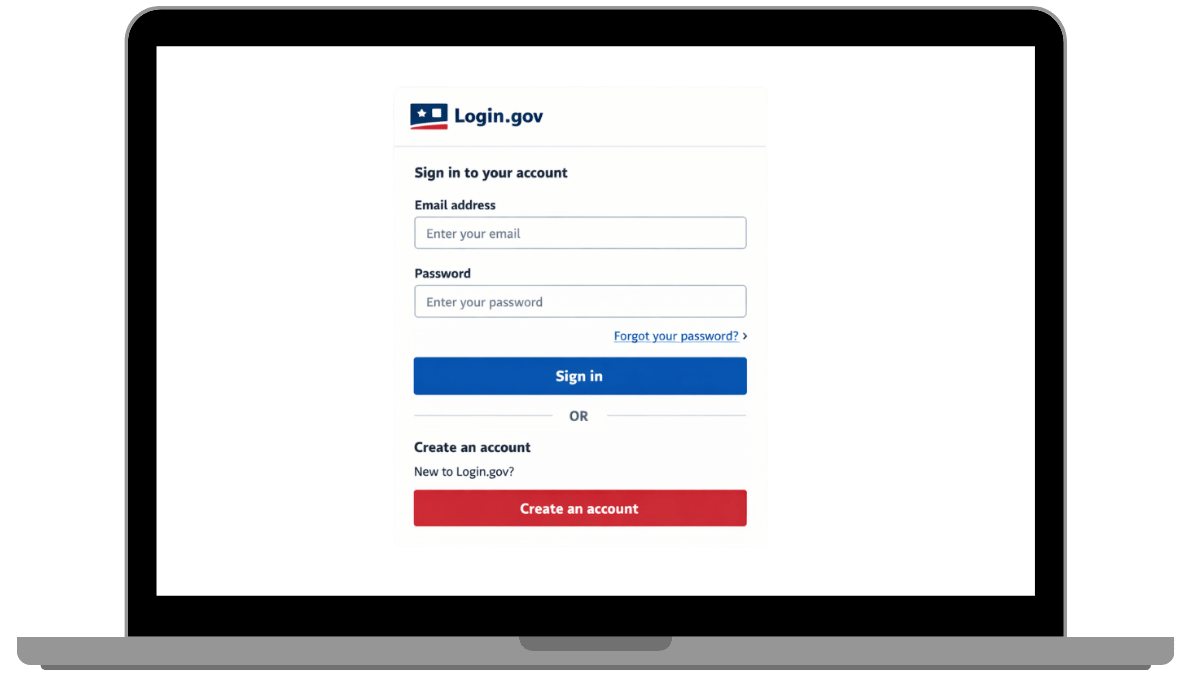
Before you can access SAM.gov's registration workflow, you need a Login.gov account. Login.gov is the federal identity verification system used as the gateway to SAM.gov and other federal platforms. You cannot begin entity registration without it.
How to create your Login.gov account
- Go to login.gov and select Create an account.
- Enter a business-controlled email address — not a personal email that could become inaccessible if staff changes.
- Verify your email address via the confirmation link.
- Set up multi-factor authentication (MFA). Authentication apps (like Google Authenticator or Authy) are more reliable for business use than SMS.
- Store your backup/recovery codes in a secure, centralized location your organization controls — not just on one person's device.
Admin ownership — the step most businesses skip
The Login.gov account tied to your SAM registration is the key to every future update and renewal. If that account is owned by a former employee or outside consultant — and they are no longer reachable — recovering access is a significant and time-consuming process. Set a clear internal owner and document the account credentials in your organization's secure records before you proceed.
For more detail on Login.gov setup and common access problems, see: Login.gov basics for SAM.gov vendors
Step 2: Sign In to SAM.gov and Start Entity Registration
With your Login.gov account ready, you can now access SAM.gov and begin the entity registration workflow. The first decision you will make is your registration purpose — and it matters.
- Go to sam.gov and select Sign In.
- Authenticate through Login.gov using your credentials and MFA.
- From your workspace, select Register Entity.
- Choose your registration purpose (see options below).
Choosing your registration purpose
- All Awards — covers federal contracts and federal financial assistance (grants). This is the right choice for the vast majority of small businesses entering federal contracting.
- Federal Financial Assistance Awards only — grants and cooperative agreements only; does not cover contracts.
- IGT only — intergovernmental transactions between government entities; not applicable to private businesses.
Steps 3–4: Legal Entity Details and Entity Validation
These two steps are where the majority of SAM registration delays originate. Getting them right the first time is the single most impactful thing you can do to keep your registration on track.
Step 3: Entering your legal entity name and physical address
SAM.gov compares the information you enter against official records to verify your business exists. That comparison is an exact match — there is no interpretation of "close enough."
- Enter your legal business name exactly as it appears on your IRS EIN confirmation letter — including punctuation, capitalization, abbreviations, and spacing.
- Common formatting traps that cause failures: "LLC" vs "L.L.C.," "Inc." vs "Inc," "and" vs "&," DBA name used instead of legal name.
- Use a physical street address for your primary address — not a PO Box. A PO Box used as the primary address is a frequent and entirely preventable source of validation failures.
- Format your address consistently with your official documents — including whether "Suite" is spelled out or abbreviated "Ste," and whether you use a 5-digit or 9-digit zip code.
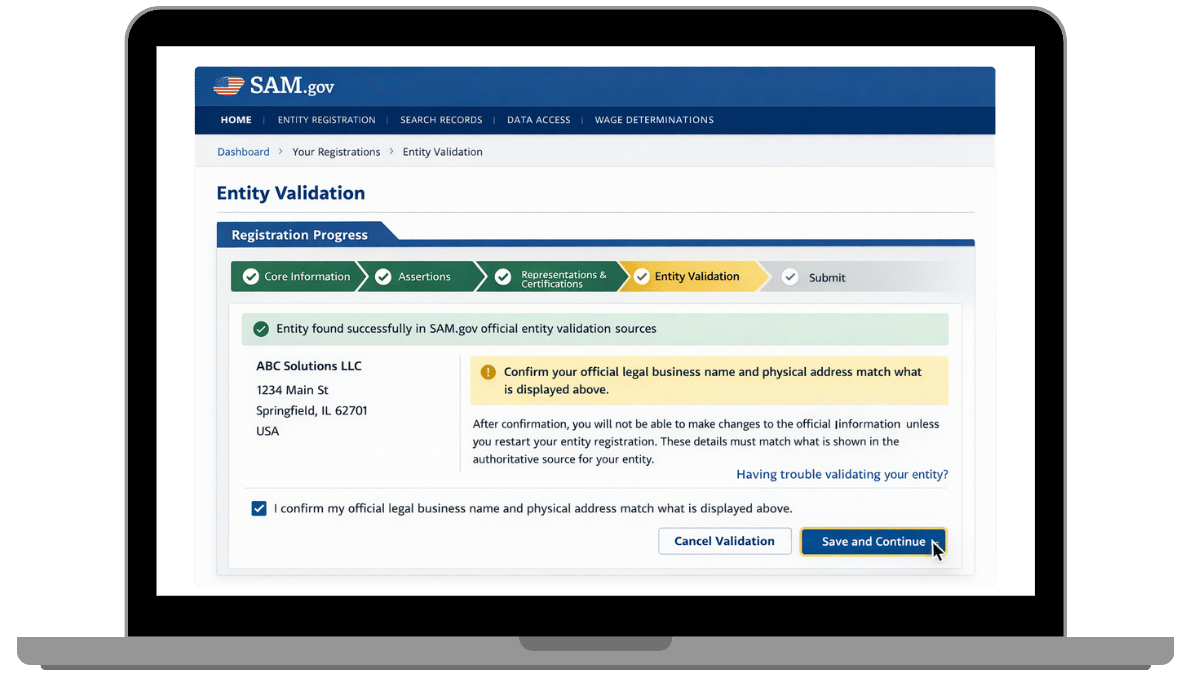
Step 4: Entity validation
After you submit your entity details, SAM.gov runs an entity validation check to confirm your business is a real, registered entity and that your submitted information matches official sources. This is the most common point where registrations stall.
What triggers manual review
- Legal name formatted differently from IRS or state records
- Physical address inconsistency between SAM entry and official documents
- PO Box used as primary address
- Missing, unlabeled, or incorrectly formatted supporting documents when requested
If validation fails or stalls
- Pull your IRS EIN confirmation letter and compare your SAM entry character by character.
- Check your physical address against your official business documents — including suite formatting and zip code.
- If SAM.gov has requested supporting documents, resubmit them with clear file names (e.g., IRS_EIN_Letter_BusinessName.pdf).
- If the issue persists after correcting and resubmitting, contact the Federal Service Desk (FSD) at fsd.gov with your entity details and a description of the problem.
For the full validation troubleshooting guide, including which documents help resolve failures: Entity validation in SAM.gov — why it fails and how to fix it
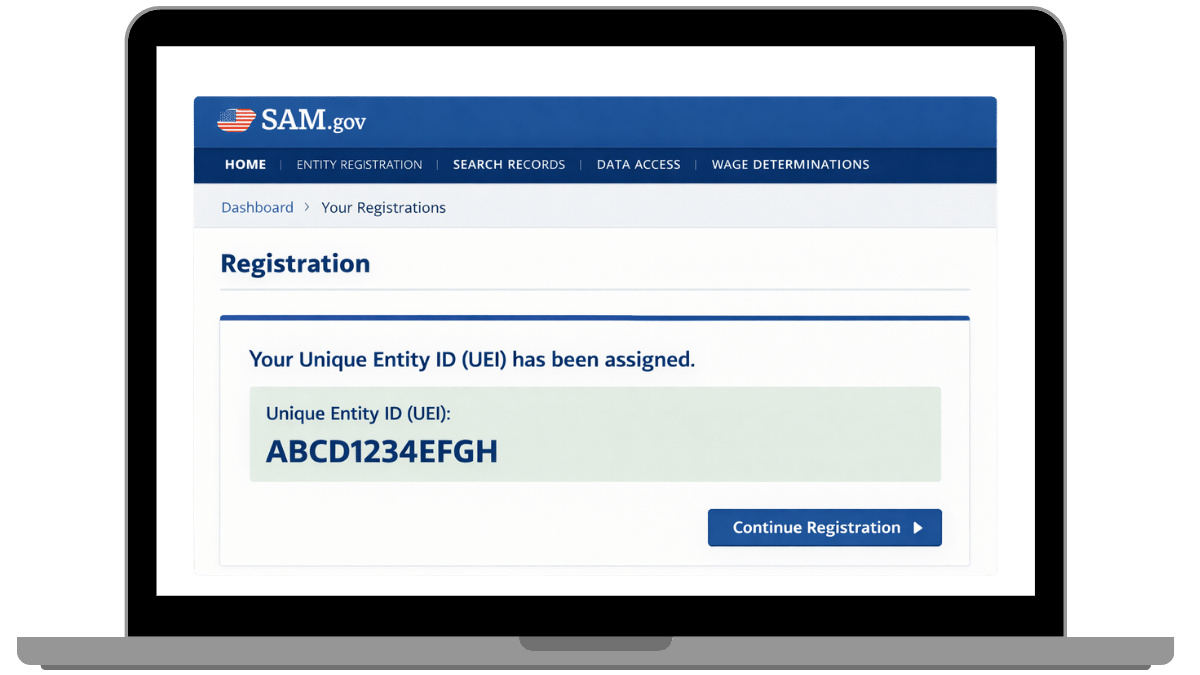
Step 5: Confirm Your UEI Number
During the registration workflow, SAM.gov assigns your Unique Entity Identifier (UEI) — a 12-character alphanumeric code that serves as your business's identifier in every federal procurement and payment system. It replaced the DUNS number in April 2022.
What to do with your UEI immediately
- Locate your UEI in your SAM.gov entity record — it appears during the registration workflow.
- Record it in your core vendor file alongside your EIN.
- Share it with your finance and operations teams — they will need it for invoicing, subcontracting agreements, and federal payment setups.
- Use it on contract bids, grant applications, teaming agreements, and any federal award documentation.
For a full explanation of the UEI — including what replaced it, where to find it after registration, and how to use it: What is a UEI number and where do you find it
Steps 6–7: NAICS Codes and Representations & Certifications
These two sections are frequently underestimated. NAICS codes determine your discoverability to federal buyers. Reps & Certs are legal declarations — not checkboxes. Both deserve careful attention.
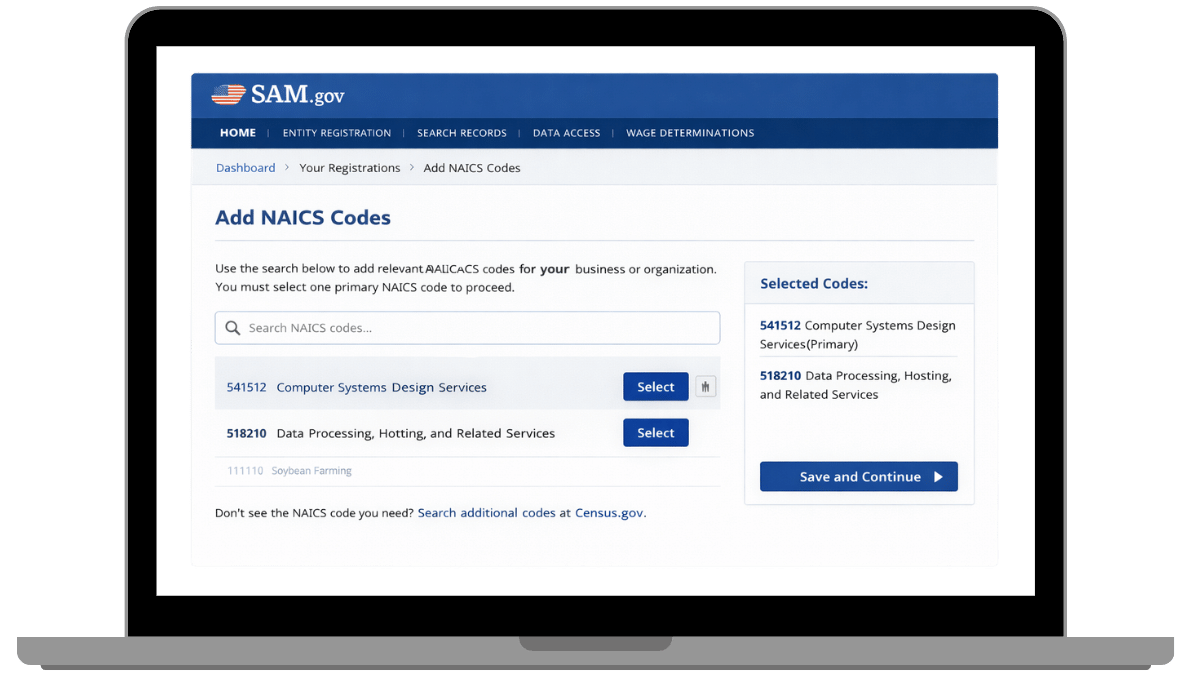
Step 6: NAICS codes
NAICS (North American Industry Classification System) codes are how federal contracting officers and acquisition teams search for vendors and issue set-aside opportunities. Your NAICS selection is a discoverability decision, not just a classification formality.
- Select one primary NAICS code that best represents your core product or service offering — the one type of work you most want to be found for.
- Add secondary codes only for areas you genuinely deliver. An overstuffed NAICS list signals to buyers that your capabilities are unfocused.
- Verify your size standard under each NAICS code you select. Size standards vary by industry and affect your small business eligibility for set-aside contracts.
- Look up NAICS codes at census.gov/naics before registration so you are not guessing mid-workflow.
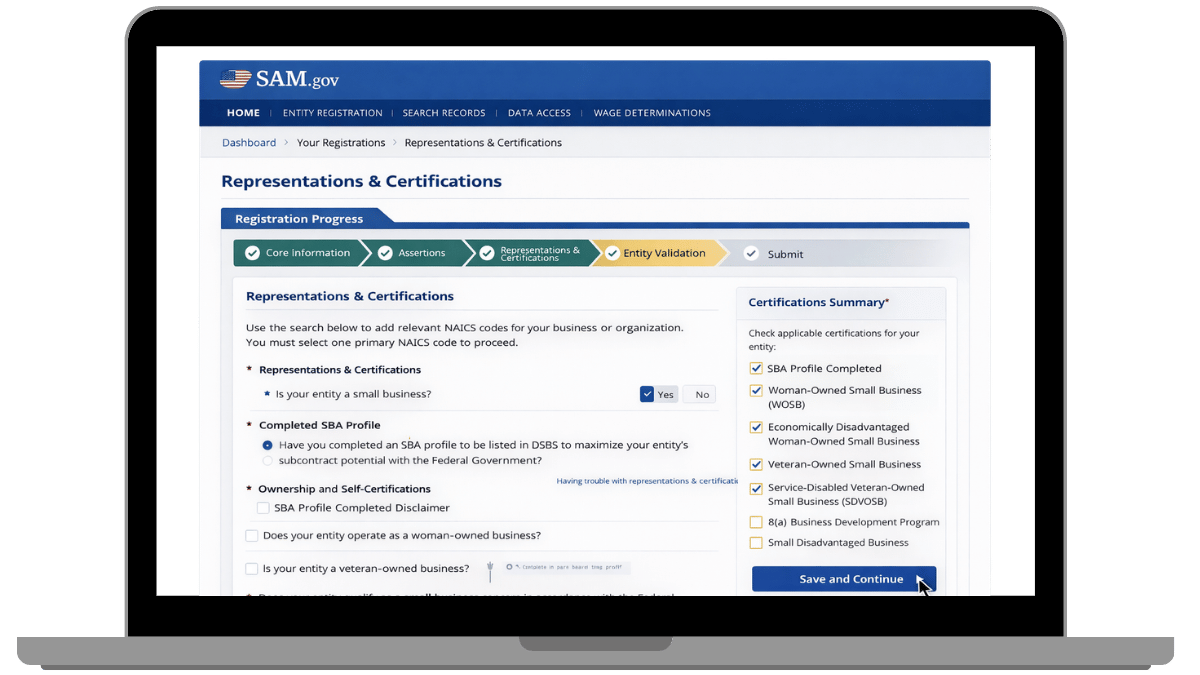
Step 7: Representations and Certifications (Reps & Certs)
Reps & Certs is a series of compliance declarations made under the Federal Acquisition Regulation (FAR). You are attesting, under legal obligation, to facts about your business — its size, ownership structure, socioeconomic status, and exclusion history. This section is not administrative. It is a legal record.
- Review each question carefully before answering — particularly questions about business size, ownership, and socioeconomic certifications.
- If any question involves ownership structure or status that you are uncertain about, verify it before confirming. Do not guess.
- Document your answers internally. You will need to confirm these same representations at annual renewal, and consistency matters.
- If your business status changes after registration — ownership, size, location — those changes need to be reflected at your next renewal or sooner.
Full guide: SAM Reps & Certs explained — what you're agreeing to
Step 8: Enter Your EFT / Banking Information
Federal payments go directly to the banking account on file in SAM.gov. Errors in this section will not prevent your registration from becoming Active — but they will cause payment failures after a contract award. Entering this information carefully now prevents a frustrating problem later.
- Enter your routing number and account number exactly as they appear on a voided business check or your official bank account documentation — not from memory.
- The account holder name must match your business name exactly as it appears in your banking records.
- Double-check all digits before submitting — transposed numbers are the most common banking error.
- Save your EFT confirmation details and share them with your finance team.
- Your MPIN (Marketing Partner Identification Number) is used to authorize future banking changes in SAM.gov. Keep it documented in your vendor file alongside your Login.gov credentials.
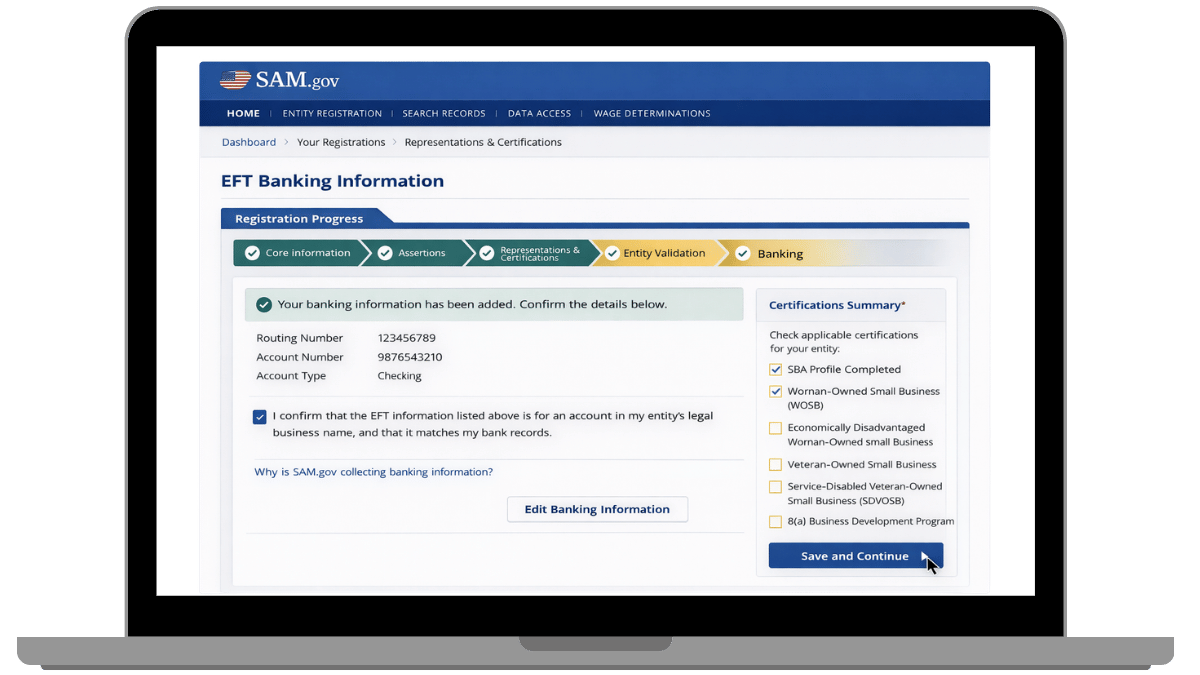
For a full walkthrough of the EFT section including MPIN and common errors: EFT and banking setup in SAM.gov — avoid payment delays
Step 9: Review, Submit, and Track Your Status
Before you submit, do a final pass across every section. This is your last opportunity to catch name and address formatting inconsistencies before your registration enters the processing queue. Five minutes of review here can prevent days of rework.
Pre-submission review checklist
- Legal business name matches your IRS EIN letter exactly
- Physical address consistent with official documents — including suite format and zip code
- NAICS codes accurately reflect your core capabilities
- Reps & Certs reviewed and answers documented internally
- Banking routing number, account number, and account holder name verified
- All points of contact have current, accessible email addresses
After submission
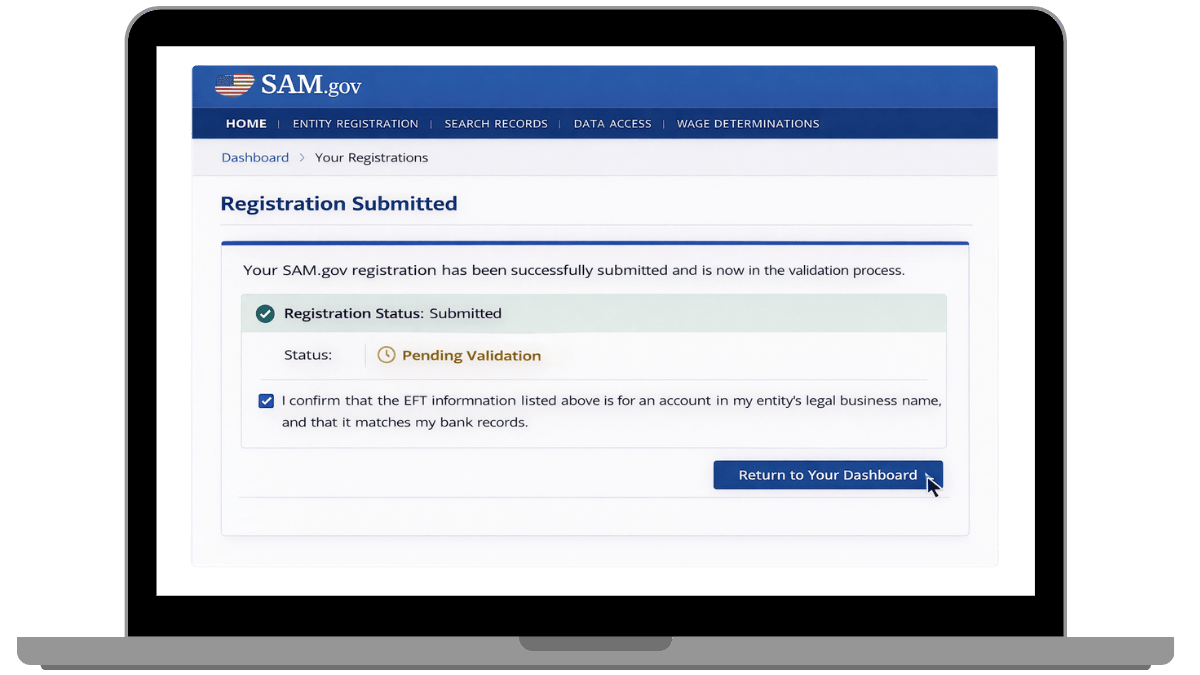
- Your entity enters the processing queue. Status will show as Processing until validation is complete.
- Monitor your SAM.gov entity record and check your email — SAM.gov may request additional documentation.
- Respond to any document requests promptly. Slow responses to documentation requests are the second most common cause of extended timelines, after data entry errors.
- Once your status changes to Active, your registration is live, your UEI is valid, and you are eligible for federal contract awards.
- Note your registration expiration date and set a calendar reminder 60 days before it — SAM registrations expire annually.
What to Do After Your SAM Registration Is Active
An Active SAM registration is the eligibility foundation — not the end of the work. Once your status confirms Active, these are your highest-priority next steps:
- Confirm and document your UEI and CAGE code. Both should be in your core vendor file immediately. Your CAGE code appears in your SAM entity record once registration is Active.
- Verify your NAICS codes reflect how buyers search. If your codes don't accurately represent your offerings, you will be invisible to the buyers most relevant to your business.
- Update your SAM profile narrative. Your entity description is visible to contracting officers during market research. Make it specific, accurate, and searchable.
- Build or finalize your capability statement. A one-page capability statement is your primary marketing document in federal contracting — start it now while your registration details are fresh.
- Explore certifications if applicable. If your business may qualify for 8(a), HUBZone, WOSB, or SDVOSB set-asides, Active SAM registration is the prerequisite for those applications.
- Calendar your renewal. Set a reminder 60 days before your SAM registration expiration date — renewals can encounter the same validation issues as initial registration, and timing matters.
Frequently Asked Questions About How to Register in SAM.gov
How long does SAM registration take?
Timeline depends on entity validation outcome and record consistency. Registrations with accurate, consistent information process faster. Mismatches between your legal name, physical address, and official documents can trigger manual review and add days or weeks. The fastest path is accurate inputs the first time — especially legal name and address.
Is SAM.gov registration free?
Yes. SAM.gov is the official U.S. government system and is completely free to use. Any service directing you to pay for SAM registration is not required. Any email requesting payment for SAM registration or renewal is fraudulent — go directly to SAM.gov for all registration activity.
What information do I need to register in SAM.gov?
You need your legal business name (exactly as on official records), physical street address, EIN/TIN, banking details (routing number, account number, account holder name), NAICS codes, and points of contact. A Login.gov account is also required before you can begin the registration workflow.
What is a UEI and when do I get it?
A UEI (Unique Entity Identifier) is a 12-character alphanumeric code assigned to your business during SAM.gov registration. It replaced the DUNS number in April 2022 and is required for all federal contract awards, grants, and payments. It is assigned inside the SAM.gov workflow — you do not apply for it separately.
What happens if entity validation fails?
Start by verifying your legal business name and physical address against your IRS EIN letter and state incorporation documents. Correct any inconsistencies and resubmit. If you remain stuck after correcting and resubmitting, contact the Federal Service Desk at fsd.gov with your entity details and a clear description of the issue.
Can I register in SAM.gov with a PO Box?
A PO Box cannot be used as your primary business address in SAM.gov. Entity validation requires a physical street address for the primary location. If you need to add a mailing address (PO Box), that can be entered separately in SAM.gov — but the primary address must be a physical location.
Do I need a CAGE code before I register in SAM.gov?
No. For domestic entities, the CAGE code is assigned during or after the SAM.gov registration workflow. You do not need to obtain it separately — it will appear in your SAM entity record once your registration is Active.
Want to make sure your registration is done right the first time?
If you want a compliance review before submission — or a done-for-you workflow that handles entity validation, banking setup, and Reps & Certs without the guesswork — schedule a strategy call and we'll map the fastest compliant path for your business type and goals.
Reviewed by: Biz2Gov Editorial Team, including former DoD Contracting Officer advisors. Official sources referenced: SAM.gov, Login.gov, Federal Service Desk (fsd.gov), U.S. Census Bureau NAICS, Acquisition.gov FAR.