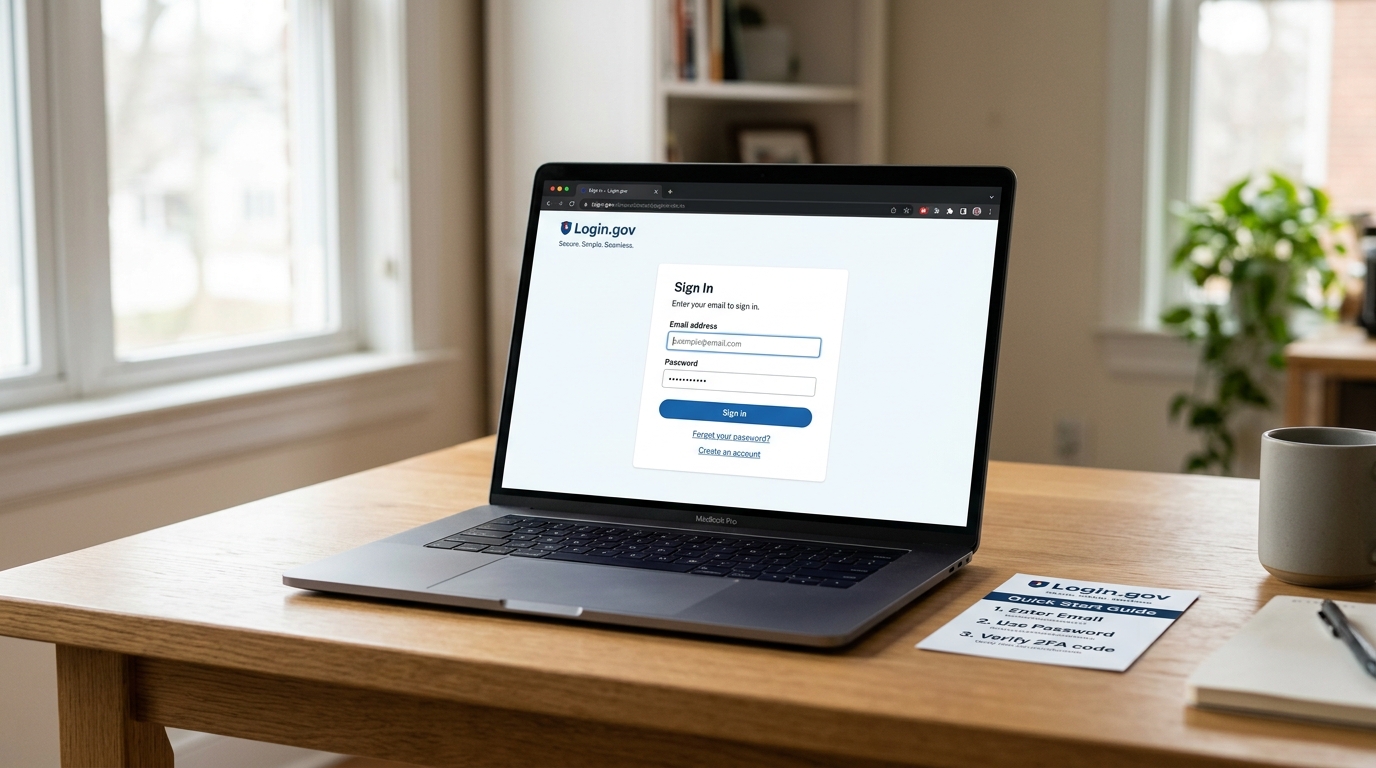
SAM.gov uses Login.gov for all sign-ins. This guide covers how to create a Login.gov account, set up multi-factor authentication, fix the most common login problems, and recover access when something goes wrong — so login issues do not stall your registration or renewal.
For the full SAM.gov registration reference, see the SAM.gov registration guide for small businesses. If your registration is stuck due to a validation issue rather than a login problem, see entity validation in SAM.gov — why it fails and how to fix it.
On this page Jump to section
What Is Login.gov and Why Does SAM.gov Use It?
Login.gov is a secure identity service operated by the U.S. General Services Administration. It provides a single sign-on for dozens of federal government websites — including SAM.gov — so users do not need separate usernames and passwords for every federal system.
SAM.gov transitioned to Login.gov as its authentication system in 2022. If you registered in SAM.gov before that transition, your old SAM.gov username and password no longer work. You must use Login.gov credentials to sign in.
How to Create a Login.gov Account
If you do not yet have a Login.gov account, here is how to create one before accessing SAM.gov.
Use a business email address that will remain accessible long-term. Avoid using a personal email or the email of a specific employee who might leave. The email tied to your Login.gov account is the key to accessing your SAM.gov entity registration.
Check your inbox for the confirmation email and click the verification link. If it does not arrive within a few minutes, check your spam folder. The link expires — if it expires, request a new one from the Login.gov sign-in page.
Choose at least one MFA method. See the MFA setup section below for guidance on which option is most reliable for business use.
Login.gov generates backup codes during account setup. Download or print them and store them in a secure location alongside your other vendor credentials. These codes are your last resort if your primary MFA method becomes unavailable.
Setting Up Multi-Factor Authentication
Login.gov requires multi-factor authentication (MFA) on every account. MFA adds a second verification step beyond your password — something you have or something you receive — to confirm your identity at sign-in. Here are the available MFA options and the trade-offs for business use:
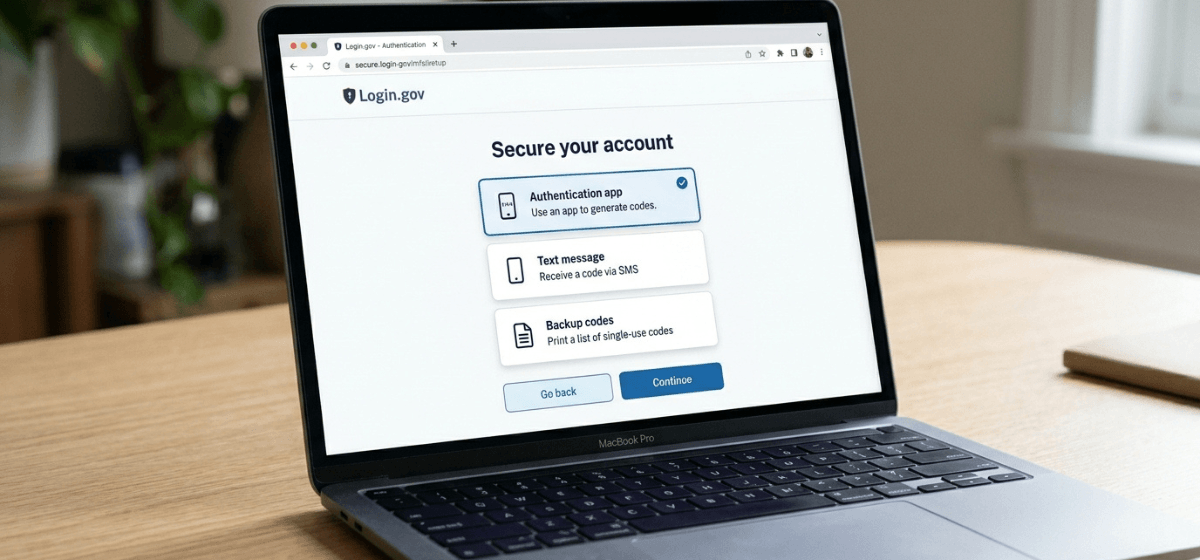
Authentication app (recommended for business)
An authenticator app such as Google Authenticator, Authy, or Microsoft Authenticator generates a time-based one-time code on your phone. This is the most reliable MFA method for business use because it works without cell service and is not dependent on receiving an SMS message. Set it up on a business-owned device if possible.
Text message (SMS)
Login.gov can send a one-time code to a phone number via text message. This is convenient but comes with a risk: if the phone number changes, is assigned to a different employee, or the device is lost, you lose access. Use a business phone number — not a personal mobile — if you choose this option.
Backup codes
A set of single-use recovery codes generated during account setup. Each code can only be used once. Store them securely — they are your fallback when other MFA methods are unavailable. Generate a new set after using codes to ensure you always have a full set on hand.
Common Login Problems and How to Fix Them
Account Ownership — A Critical Business Decision
The Login.gov account that controls your SAM.gov entity registration is one of the most important credentials your business holds. Losing access to it can prevent you from renewing your registration, updating your entity record, or responding to documentation requests — all of which have real consequences for your ability to pursue and receive federal awards.
Best practices for business Login.gov account management:
- Use a business-controlled email address — not the personal email of any individual employee. A role-based address (admin@, contracts@, info@) survives personnel changes.
- Document the MFA method in your vendor file — which app, which phone number, and where backup codes are stored.
- Store backup codes securely — with your other critical vendor credentials, accessible to more than one person in the organization.
- Review access annually — as part of your SAM.gov renewal process, confirm that login credentials are still accessible and that the MFA device is still in service.
- Do not share Login.gov credentials broadly — limit access to the people who actually manage SAM.gov compliance in your organization.
Need help with your SAM.gov registration or access issues?
Login.gov and SAM.gov access problems can stall registrations and renewals at the worst possible times. If you want expert help navigating the process — or want a done-for-you workflow that handles access, validation, and submission — book a strategy call or see our registration service.
Frequently Asked Questions
Do I need a separate Login.gov account for each SAM.gov entity I manage?
No. One Login.gov account can be linked to multiple SAM.gov entity registrations. If your organization manages multiple entities, a single business Login.gov account can serve as the access point for all of them.
Can two people share a Login.gov account to manage SAM.gov?
Login.gov accounts are designed for individual use. Sharing credentials between people creates security risk and can complicate account recovery. For organizations that need multiple people to manage SAM.gov, consider using SAM.gov's entity administrator and points-of-contact roles to distribute access within the system.
What should I do if a former employee owned our Login.gov account?
If you still have access to the email address linked to that account, use the password reset process to regain control. If you cannot access the email, contact Login.gov support at login.gov/help. In parallel, contact the Federal Service Desk at fsd.gov to flag the situation for your SAM.gov entity record.
Is Login.gov the same as SAM.gov?
No. Login.gov is a separate U.S. government identity and authentication service managed by GSA. SAM.gov is a separate system where entity registrations are held. You use your Login.gov credentials to sign in to SAM.gov, but they are distinct systems with separate support channels.
What browsers work best with Login.gov and SAM.gov?
Chrome, Microsoft Edge, Firefox, and Safari (v11.1 or later) are the recommended browsers. If you experience display or login issues, try a different browser or clear your browser cache and cookies before attempting to sign in again.