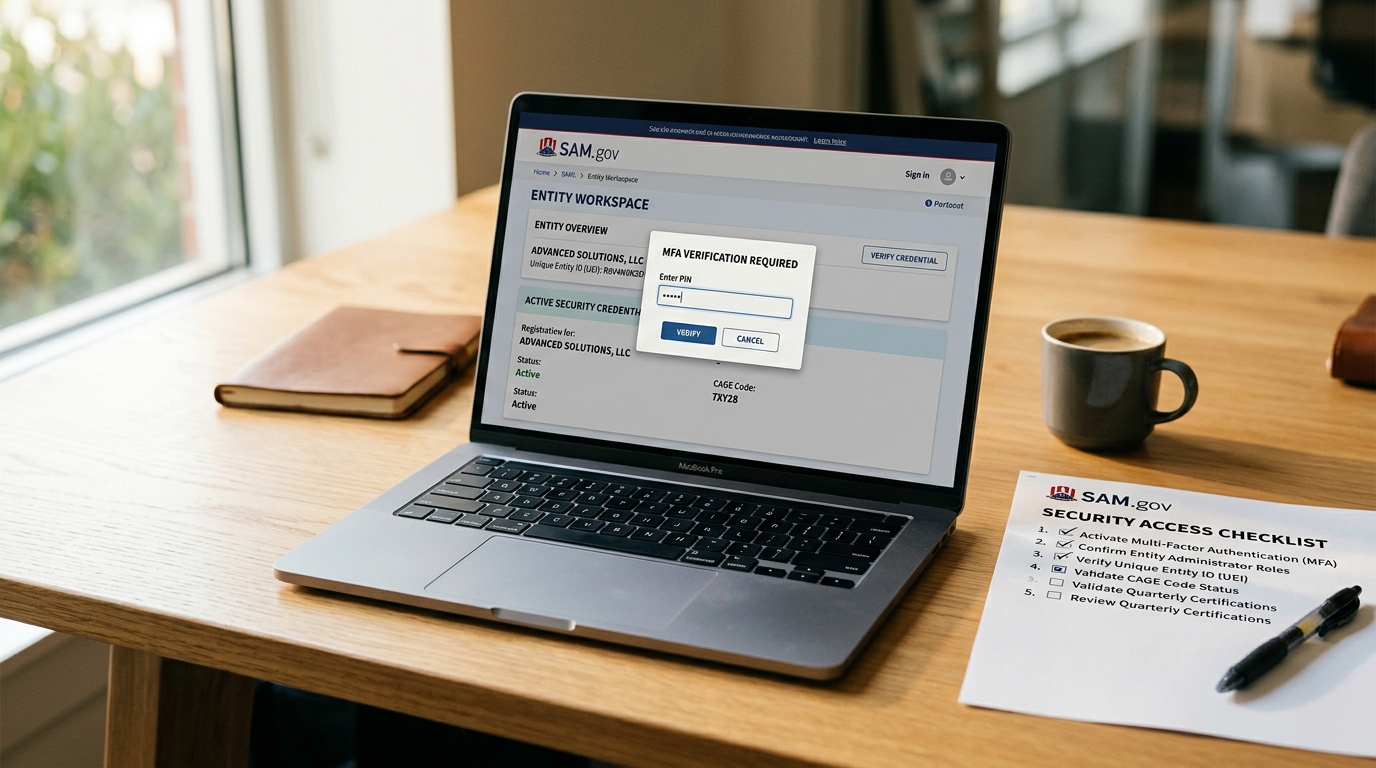
The MPIN (Marketing Partner Identification Number) is a SAM.gov credential used to authorize banking updates and certain administrative changes to your entity record. This guide explains what the MPIN is, where it is used, how to reset it, and how to keep it documented so it does not become a problem when you need it most.
For the full SAM.gov reference guide, see the SAM.gov registration guide for small businesses. For EFT and banking setup guidance, see EFT and banking setup in SAM.gov.
On this page Jump to section
What Is the MPIN?
The MPIN (Marketing Partner Identification Number) is a credential you create during SAM.gov entity registration. Unlike your Login.gov password — which controls access to the SAM.gov interface — the MPIN is used specifically to authorize sensitive updates to your entity record, most notably changes to your EFT banking information.
The MPIN is not assigned by SAM.gov. You create it yourself during registration. It must meet SAM.gov's complexity requirements and should be treated with the same level of security as a banking password — because that is effectively what it protects.
Where the MPIN Is Used
The MPIN's primary function in modern SAM.gov is to authorize EFT banking updates. When you need to change the routing number, account number, or banking details on file in your entity record, SAM.gov requires MPIN verification as a security layer to prevent unauthorized changes to your payment information.
Historically, the MPIN was used more broadly across federal procurement systems. Its role has narrowed over time as SAM.gov evolved, but it remains an active credential for banking-related updates. If you are never updating your banking information, you may go years without needing it — which is precisely why it gets forgotten and lost.
How to Reset Your MPIN
If you have lost or forgotten your MPIN, you can reset it directly through your SAM.gov entity record — no FSD ticket required for a standard reset. Here is the process:
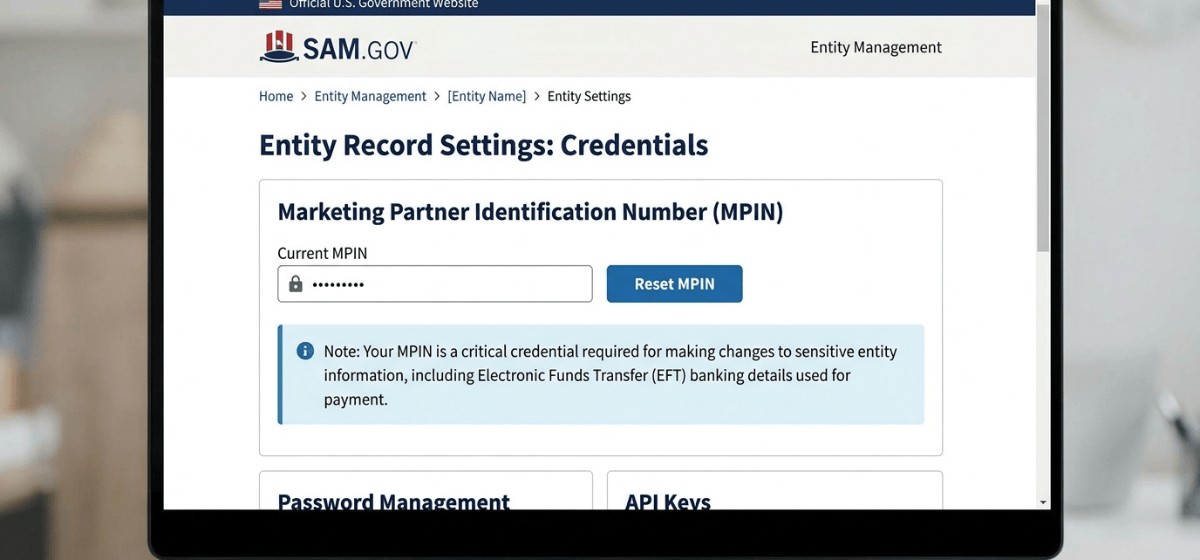
Go to sam.gov and sign in with your Login.gov email and password. Your MPIN reset is handled inside SAM.gov — not through Login.gov. If you cannot sign in, resolve the Login.gov access issue first. See Login.gov basics for SAM.gov vendors for help with sign-in issues.
From your SAM.gov workspace, locate your registered entity. Open the entity record and look for the administration or settings options within the entity management area.
Within your entity record, find the MPIN credential section. SAM.gov will present an option to reset or update the MPIN. Follow the prompts to create a new MPIN that meets the complexity requirements.
Choose a strong MPIN that meets SAM.gov's requirements. Before navigating away, record the new MPIN in your vendor credentials file — the same secure location where you store your Login.gov email, UEI, CAGE code, and EIN. Update any internal documentation that references the old MPIN.
What to Do If You Cannot Reset Your MPIN
The standard MPIN reset process works when you have active Login.gov access to the account that controls your SAM.gov entity. If the standard reset is not resolving the issue, here are the scenarios and next steps:
You cannot access the Login.gov account linked to your entity
The MPIN reset requires active SAM.gov access. If you cannot sign in due to a Login.gov issue, resolve that first. See Login.gov basics for SAM.gov vendors for account recovery options.
The reset option is not visible in your entity record
This can happen if your entity record is in a non-editable state — such as during active renewal processing or if there is a pending validation issue. Check your entity status first. If the record appears Active and the option is still not visible, contact the Federal Service Desk at fsd.gov with your UEI and a description of what you are seeing.
You need to update banking but the MPIN process is blocking you
If you have gone through the reset process and are still unable to complete a banking update, open an FSD ticket at fsd.gov. Include your UEI, a description of the banking update you need to make, and the specific error or block you are encountering. FSD can intervene on MPIN and banking update issues at the system level when self-service is not working.
MPIN Documentation Best Practices
The MPIN becomes a problem almost exclusively when it is not documented. Here is how to prevent that from happening:
- Record it when you create it: The moment you set your MPIN during registration, add it to your vendor credentials file. This takes 30 seconds and prevents a future crisis.
- Store it at the organization level: The MPIN should be accessible to whoever manages SAM.gov compliance in your organization — not stored only in one person's memory or personal notes.
- Review it annually: As part of your SAM.gov renewal process, confirm your MPIN is documented and accessible. If it is not, reset it and document the new one before completing renewal.
- Treat it like a banking credential: The MPIN protects your EFT banking information. Give it the same security treatment as your online banking password — secure storage, limited access, documented location.
- Do not reuse passwords: Your MPIN should be distinct from your Login.gov password and other credentials associated with your SAM.gov account.
Need help getting your SAM.gov credentials sorted out?
MPIN issues, banking update blocks, and credential management problems are common sources of delay — especially when SAM.gov compliance has been handled by someone who has since left the organization. If you want expert help untangling access issues or want a done-for-you approach to registration and renewal, book a strategy call.
Frequently Asked Questions
Is the MPIN the same as my Login.gov password?
No. They are two separate credentials. Your Login.gov password controls sign-in access to SAM.gov. Your MPIN is a separate credential inside SAM.gov used to authorize specific administrative actions, particularly banking updates. Changing one does not affect the other.
Do I need my MPIN to renew my SAM registration?
Not for a standard annual renewal where your banking information is not changing. The MPIN is specifically required when you need to update EFT banking details. If your bank account information stays the same during renewal, you can complete the renewal without entering your MPIN.
What happens if I enter the wrong MPIN too many times?
SAM.gov may lock the MPIN after repeated incorrect entries as a security measure. If this happens, use the MPIN reset process through your entity record, or contact the Federal Service Desk at fsd.gov if the reset option is not available.
Can I change my MPIN at any time?
Yes. You can update your MPIN at any time through your SAM.gov entity record administration settings — you do not need to wait for a renewal cycle. Resetting your MPIN proactively and documenting the new one is a good practice even if you do not currently need it.
Who should know our organization's MPIN?
The MPIN should be known to whoever is responsible for SAM.gov compliance and vendor credential management in your organization — typically the same person who manages the Login.gov account and SAM registration renewals. It should be stored securely at the organization level, not held only by one individual.