Finding Contract Opportunities · SAM.gov
Knowing how to search SAM.gov is the first practical skill in federal contracting — and the good news is that searching is completely free and doesn't require registration. This beginner workflow walks you from your first keyword to a saved search with email alerts, so new opportunities come to you automatically. This guide is part of our pillar on how to get government contracts.
To search SAM.gov, open the Contract Opportunities search, start with one keyword or your NAICS code, then narrow with filters (NAICS, PSC, set-aside, place of performance, active only). Save the search and turn on email alerts so new matches are delivered to you. You do not need a SAM.gov registration to search — only to submit a bid.
On this page Jump to section
Do You Need to Register to Search SAM.gov?
No. Browsing and searching contract opportunities on SAM.gov is free and public — no account required. You only need an active SAM.gov registration when you are ready to submit a bid or receive an award. That means you can begin your market research today, even while your registration is still processing.
One nuance worth knowing: as of February 2026, searching federal award data (who has already won contracts) does require a free SAM.gov account, because that function moved over from the retired FPDS.gov. But searching open opportunities — the focus of this guide — stays public.
The 6-Step SAM.gov Search Workflow
The mistake most beginners make is typing a long, specific phrase into the search box and getting three results or three thousand. The reliable method is the opposite: search broad, then filter down.
Go to SAM.gov and open the Search area, then the Contract Opportunities domain. You do not need to log in to browse — searching is free and public.
Enter a single plain-language keyword ("janitorial", "HVAC", "staffing") or your primary NAICS code. Start wide; you will narrow with filters next, not with a longer search phrase.
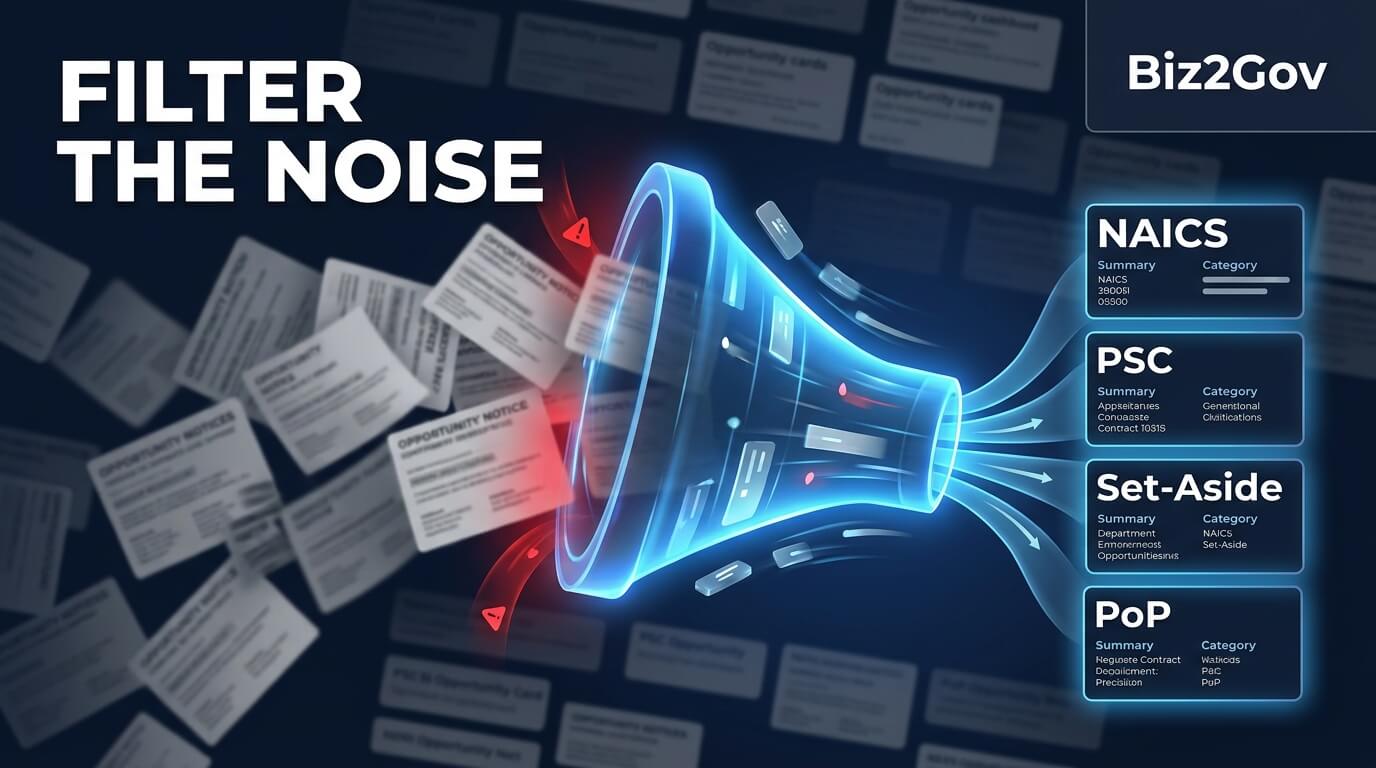
Narrow by NAICS, PSC, set-aside type, place of performance, and status (active only). Filters do more work than keywords ever will.
A Sources Sought, RFI, RFQ, and RFP each call for a different response. Check the notice type first so you know whether to raise your hand, ask a question, or prepare a full bid.
Once your keyword + filter combination returns clean, relevant results, save it. A saved search is a standing query you never have to rebuild.
Enable email notifications on your saved search so new matches come to you, and Follow individual notices to catch amendments and Q&A deadlines. This turns SAM.gov from a place you visit into a feed that works while you don't.
Which filters you use — and how you combine them — is where a usable pipeline is won or lost. That is its own topic: see the SAM.gov filters that actually matter for the exact combinations by business type.
What Your Results Are Telling You
Each result is a notice, and the notice type controls your next move. Before you spend an hour reading a solicitation, confirm what kind of notice you are looking at — a market-research notice you can answer in a page is very different from a full request for proposals. The full breakdown is in notice types explained: Sources Sought, RFI, RFQ, RFP.
Also scan the response deadline, the set-aside designation, and the place of performance before anything else. Those three fields tell you almost immediately whether an opportunity is realistic for you — long before you open the attachments.
Beginner Mistakes to Avoid
- Searching by keyword alone. Keywords miss opportunities filed under different wording. NAICS and PSC codes catch them.
- Leaving "inactive" notices in your results. Filter to active opportunities so you're not chasing closed bids.
- Not saving the search. Rebuilding the same query every week is wasted effort — and you'll miss things on the weeks you forget.
- Ignoring Sources Sought notices. These appear before the RFP and are the single best way to get on an agency's radar early.
When I ran acquisitions, the vendors I noticed weren't the ones who found my RFP the day it posted — they were the ones already in my inbox from a Sources Sought response weeks earlier. Set your saved search and alerts once, and you'll see opportunities in the window where you can still influence them, not after the requirements are locked.
Want a shortcut to a working pipeline?
Biz2Gov helps small businesses go from unregistered to a running opportunity pipeline — hands-on implementation, not just advice. Founded by former DoD Contracting Officer Bruce Ayres.
Frequently Asked Questions
Do I need to register in SAM.gov to search for contracts?
No. Searching and browsing contract opportunities on SAM.gov is free and public. You only need an active SAM.gov registration when you are ready to submit a bid or receive an award.
How do I get email alerts for new SAM.gov opportunities?
Build a search with the keyword and filters that match your business, save it, and enable email notifications on the saved search. SAM.gov will then email you when new matching notices post.
Should I search by keyword or NAICS code?
Both, but lead with NAICS. Keywords miss opportunities written with different wording; NAICS and PSC codes classify the work itself, so they catch matches a keyword search would skip.
Is there a fee to search SAM.gov?
No. Searching, browsing, and registering on SAM.gov are all free. Any site or email charging you to search or register is not the official system.